
Stellarium configuration – Empty Markers
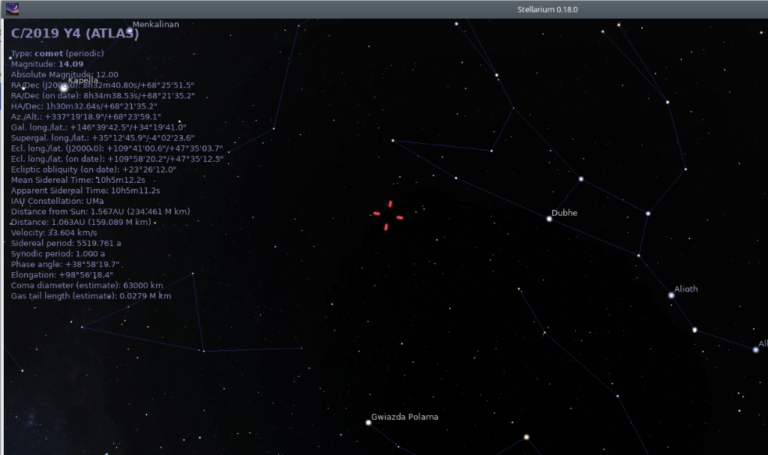
A common scenario after installing Stellarium is zooming in on a famous object (e.g., the Andromeda Galaxy) only to see a marker symbol against a black background or a few stars. Users often try to fix this by downloading additional “Star Catalogs” (1 through 9) in the settings. This is a fundamental error. Star catalogs only contain positional data for points of light (stars), not graphical image files of nebulae or galaxies.
In the default configuration, Stellarium displays a large number of images of known DSOs, but not all we would need. To increase the number of DSO images displayed, you need to enable an additional catlaog that will complement the displayed images, but still they will not be all visible.
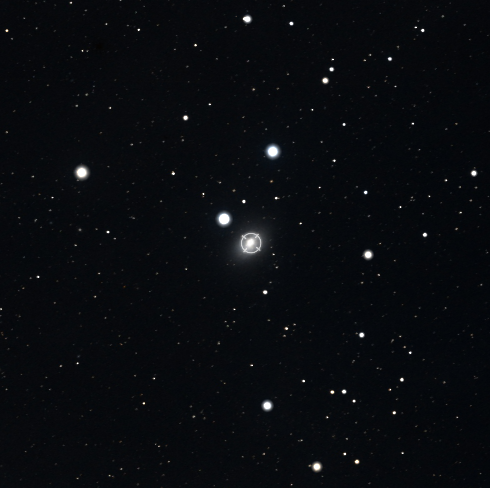
As an example would be the galaxy NGC 3077, which in my version of Stellarium 0.19.3 is not displayed, although it is in the DSO database and is indicated on Stellarium sky screen.
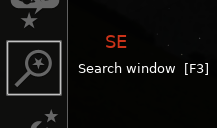
Lets start Stellarium and go to the object search, click the magnifying glass – Search window (F3)
Enter NGC 3077 in the text search field and click the magnifying glass
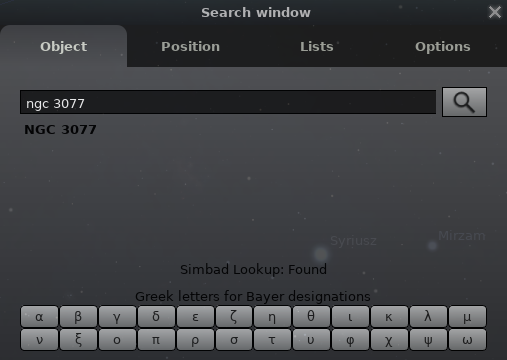
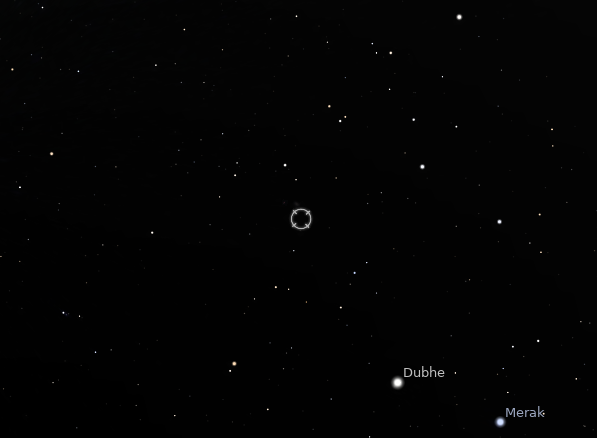
As you can see in the image below, the object was found but it is not visible.
Solution 1: Atmosphere and Light Pollution Simulation
Stellarium is a realistic simulator. If you selected a city location and the “Atmosphere” is enabled on the bottom bar (shortcut A), the software will hide objects whose surface brightness is too low for the conditions.
-
Fix: Disable the atmosphere (key
A) or increase the limiting magnitude for DSOs in the “Sky and Viewing Options” window [F4].
Solution 2: Digitized Sky Survey (DSS)
Stellarium only has built-in textures for the brightest objects (Messier catalog). To see fainter nebulae (e.g., from the NGC or IC catalogs) as they appear in photographs, you must use the Sky Survey feature.
-
Find the “Deep Sky Surveys” (DSS) icon in the bottom menu or enable it in the plugins.
-
Once activated, Stellarium downloads real photo mosaics from professional observatories (Palomar/UK Schmidt) servers.
-
This allows for precise framing of your astrophotography session, as you see the actual shape of the nebula, not just an arbitrary symbol.
Cache Memory
Using DSS mode requires an internet connection. Stellarium buffers these images on your disk, so over time, the “map” of your most frequently visited sky regions will become available offline.
Guiding step by step configuration
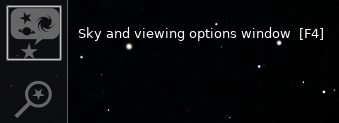
Let’s move to the settings window for the sky view. In the left menu, click Sky and viewing options windows [F4] or press the F4 key.
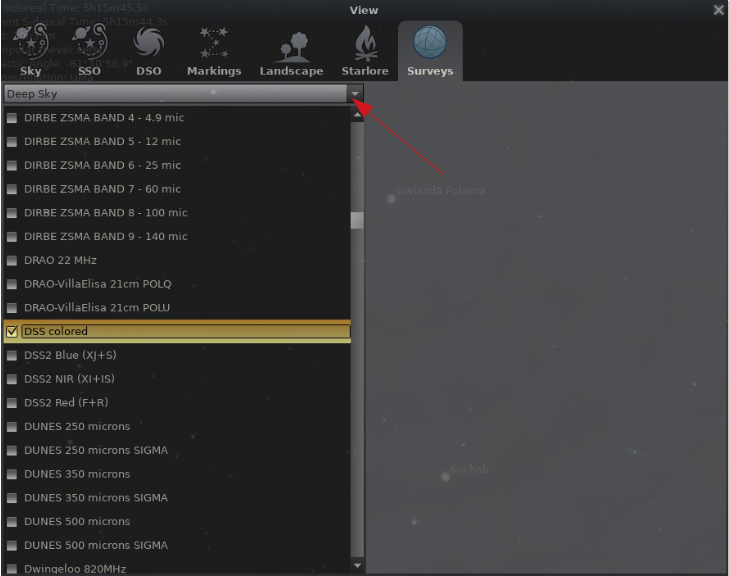
Click the Surveys tab, select Deep Sky from the drop-down list and then find and enable DSS colored in the list. We close the window.
Now on the sky view, NGC 3077 is already visible.